With the rapid development of artificial intelligence technology, more and more enterprises and developers are looking to integrate Large Language Model (LLM) chatbots into their systems. This article aims to guide readers on how to use Nvidia GPUs in a Kubernetes environment to deploy a high-performance LLM chatbot, covering everything from installing necessary drivers and tools to specific deployment steps.
Contents
Environment
We will use the following virtual machine (VM) configuration as the basis for deployment:
- CPU: AMD Epyc 7413 16-Core
- RAM: 16GB
- GPU: Tesla P4 8GB
- OS: Ubuntu 22.04
- Kubernetes CRI: containerd
Providing Nvidia GPUs in Kubernetes
Install Nvidia Drivers
In Ubuntu systems, you can install proprietary Nvidia drivers via the apt package manager. First, use the following command to search for available Nvidia driver versions:
apt search nvidia-driverThis tutorial will use Nvidia driver version 525 as an example for installation:
sudo apt install nvidia-driver-525-serverOnce the installation is complete, you can verify that the driver was successfully installed using the following command:
sudo dkms status

lsmod | grep nvidia
A successful installation will produce the following output:
nvidia-srv/525.147.05, 5.15.0-97-generic, x86_64: installed

nvidia_uvm           1363968  2
nvidia_drm             69632  0
nvidia_modeset       1241088  1 nvidia_drm
nvidia              56365056  218 nvidia_uvm,nvidia_modeset
Install Nvidia Container Toolkit
The Nvidia Container Toolkit allows containers to access GPUs directly. You can install this toolkit using the following commands:
curl -fsSL https://nvidia.github.io/libnvidia-container/gpgkey | sudo gpg --dearmor -o /usr/share/keyrings/nvidia-container-toolkit-keyring.gpg \
  && curl -s -L https://nvidia.github.io/libnvidia-container/stable/deb/nvidia-container-toolkit.list | \
    sed 's#deb https://#deb [signed-by=/usr/share/keyrings/nvidia-container-toolkit-keyring.gpg] https://#g' | \
    sudo tee /etc/apt/sources.list.d/nvidia-container-toolkit.list

sudo apt update
sudo apt install -y nvidia-container-toolkit
After installation, configure containerd to use the Nvidia container runtime:
sudo nvidia-ctk runtime configure --runtime=containerdThis operation will modify the /etc/containerd/config.toml configuration file as follows to support Nvidia GPUs:
version = 2

[plugins]

  [plugins."io.containerd.grpc.v1.cri"]

    [plugins."io.containerd.grpc.v1.cri".containerd]

      [plugins."io.containerd.grpc.v1.cri".containerd.runtimes]

        [plugins."io.containerd.grpc.v1.cri".containerd.runtimes.nvidia]
          privileged_without_host_devices = false
          runtime_engine = ""
          runtime_root = ""
          runtime_type = "io.containerd.runc.v2"

          [plugins."io.containerd.grpc.v1.cri".containerd.runtimes.nvidia.options]
            BinaryName = "/usr/bin/nvidia-container-runtime"
Install Nvidia Device Plugin
Use Helm to install the Nvidia device plugin so that Kubernetes can identify and allocate GPU resources:
helm repo add nvdp https://nvidia.github.io/k8s-device-plugin
helm repo update
helm upgrade -i nvdp nvdp/nvidia-device-plugin \
  --namespace nvidia-device-plugin \
  --create-namespace \
  --version 0.14.4
Detailed configuration values files can be found inGet it here, and by setting the appropriate nodeSelector, you can ensure that the Nvidia device plugin is only installed on nodes equipped with GPUs.
Using Nvidia GPUs in Pods
To enable Nvidia GPU support for your Pods, add the following configuration to your Kubernetes YAML file:
spec:
  containers:
      resources:
        limits:
          nvidia.com/gpu: 1
Deploying an LLM Chatbot
Using Ollama and Open WebUI as the LLM chatbot deployment solution, these tools provide Kubernetes-ready YAML files and Helm Charts to streamline the deployment process.
Here are the steps for deploying using Kustomize:
git clone https://github.com/open-webui/open-webui.git
cd open-webui
kubectl apply -k kubernetes/manifest
Once complete, you will see two running Pods in the open-webui namespace. You can access the Web UI via Ingress or NodePort; the default port is 8080.
kubectl get pods -n open-webui
NAME                                   READY   STATUS    RESTARTS   AGE
ollama-0                               1/1     Running   0          3d3h
open-webui-deployment-9d6ff55b-9fq7r   1/1     Running   0          4d19h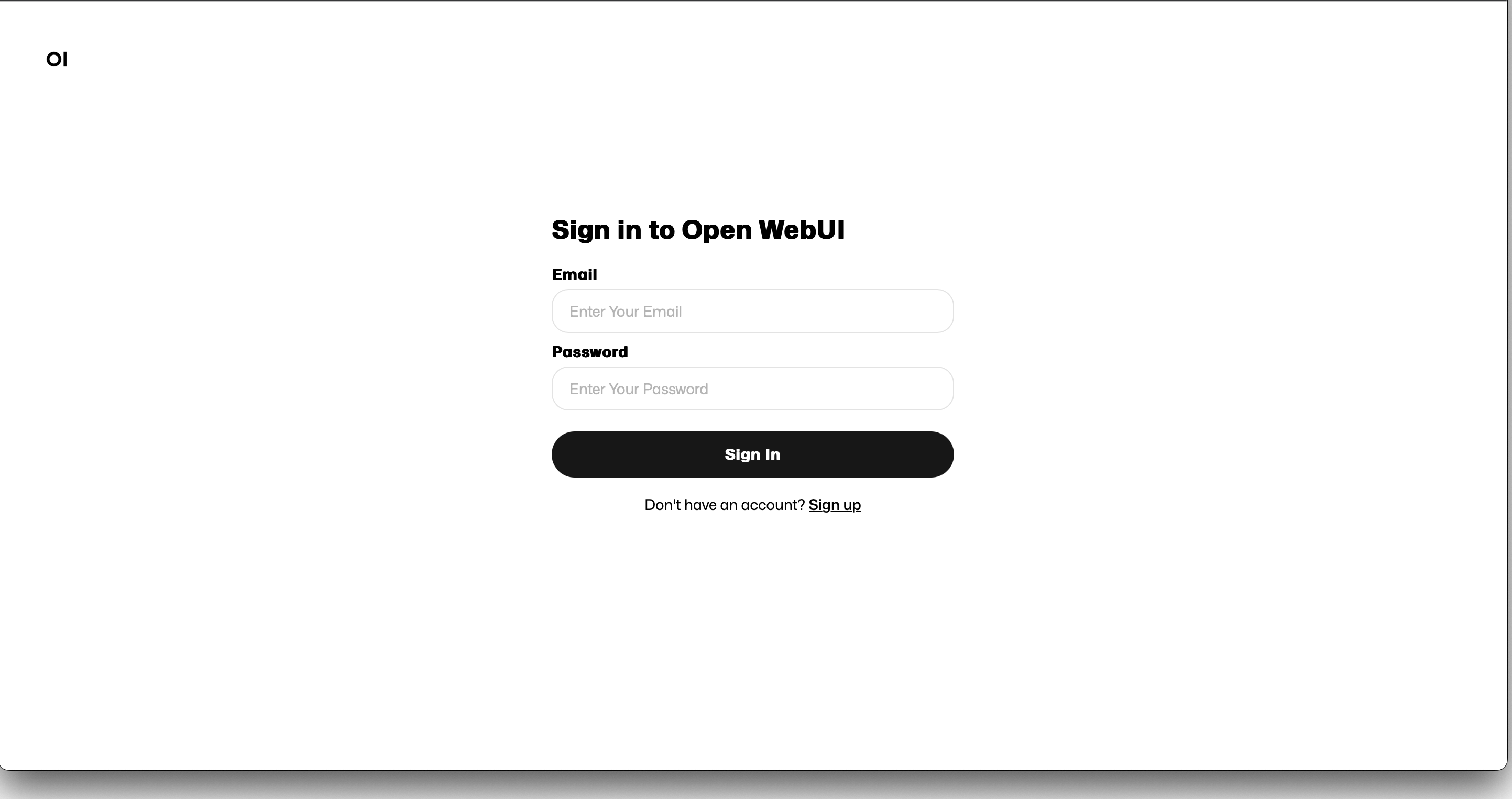
By default, new user registration is enabled. After signing up, you can log in with your credentials to see an interface very similar to ChatGPT:
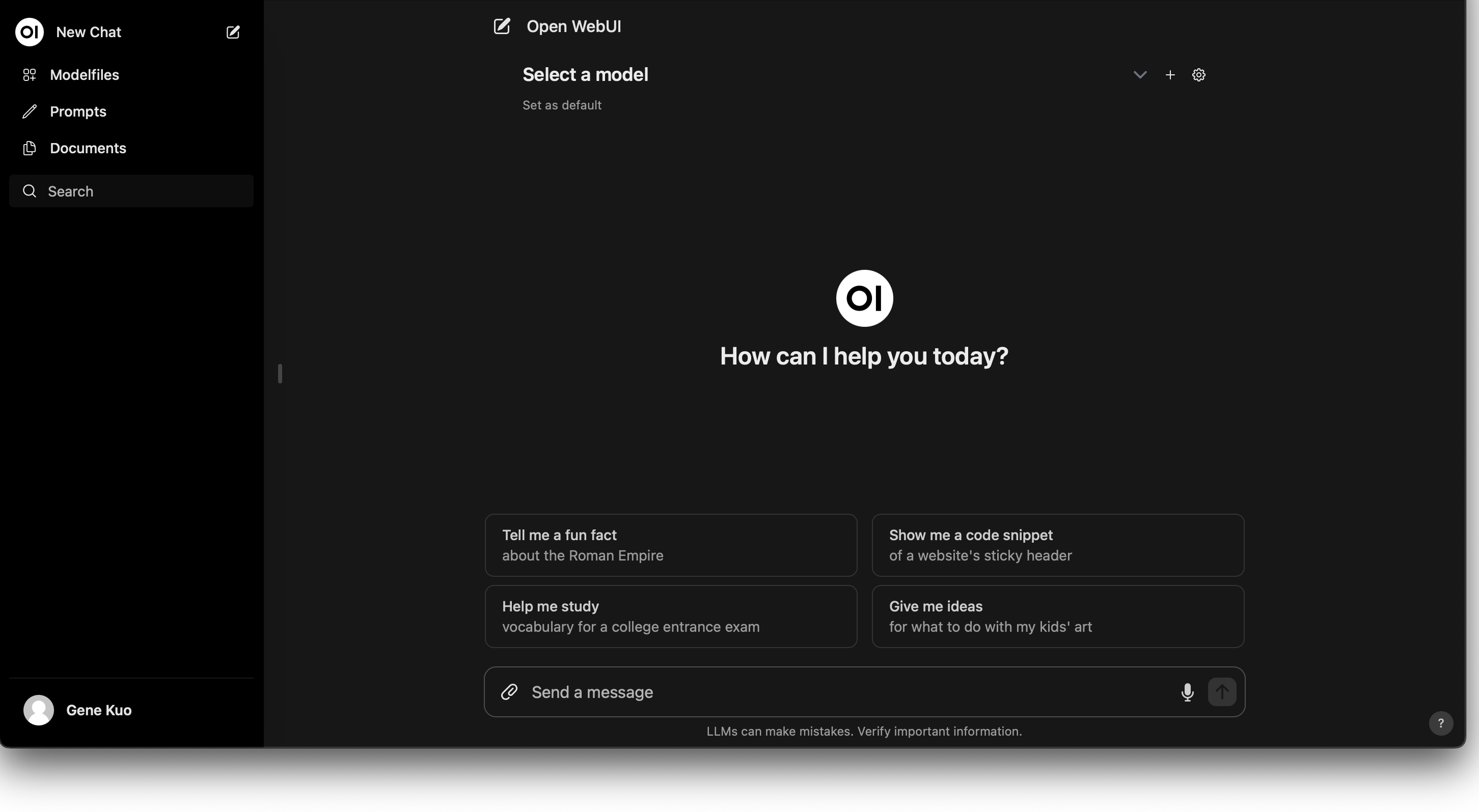
You can download LLM models from Ollama within the settings:
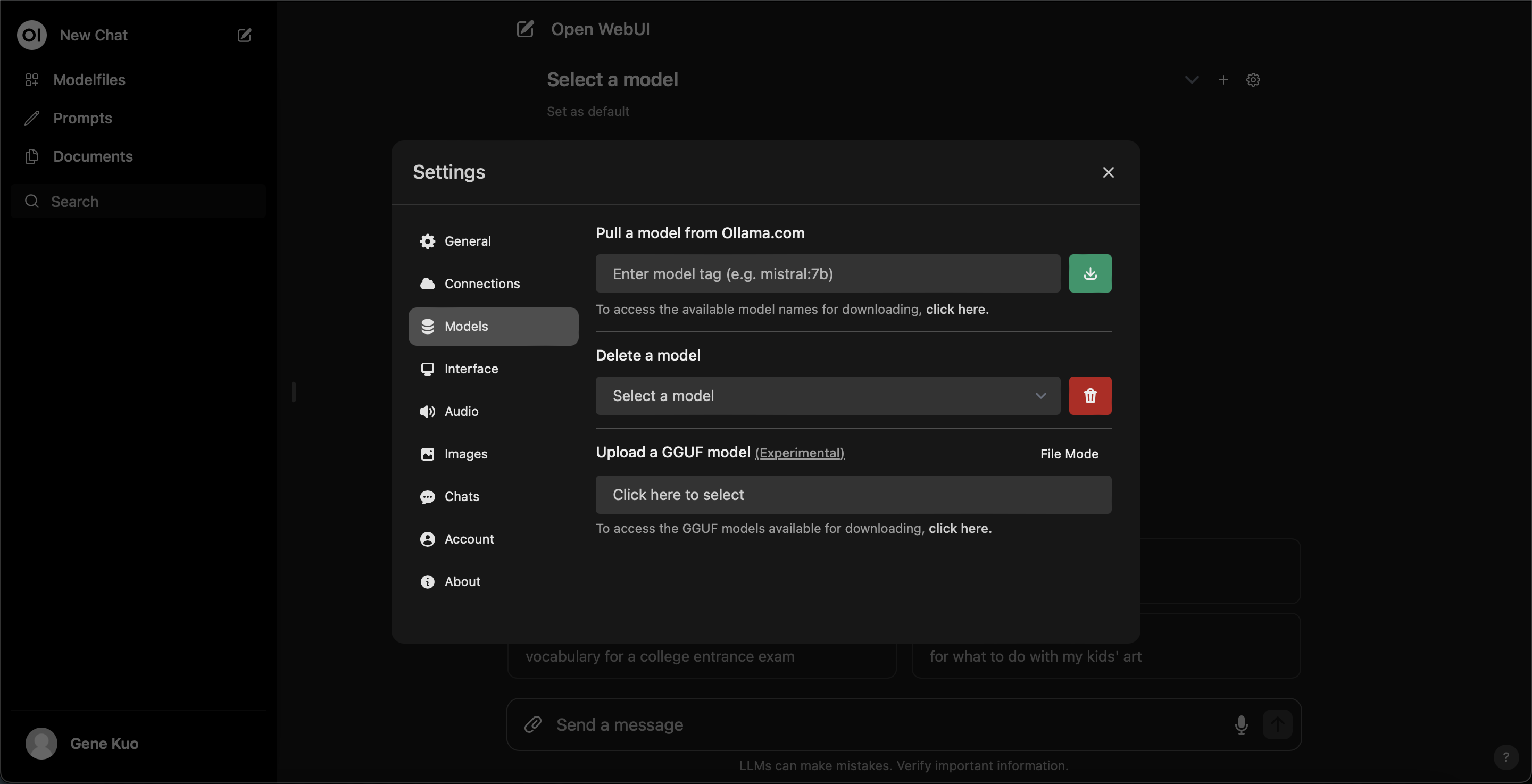
After downloading, select your preferred model to start chatting with the AI:
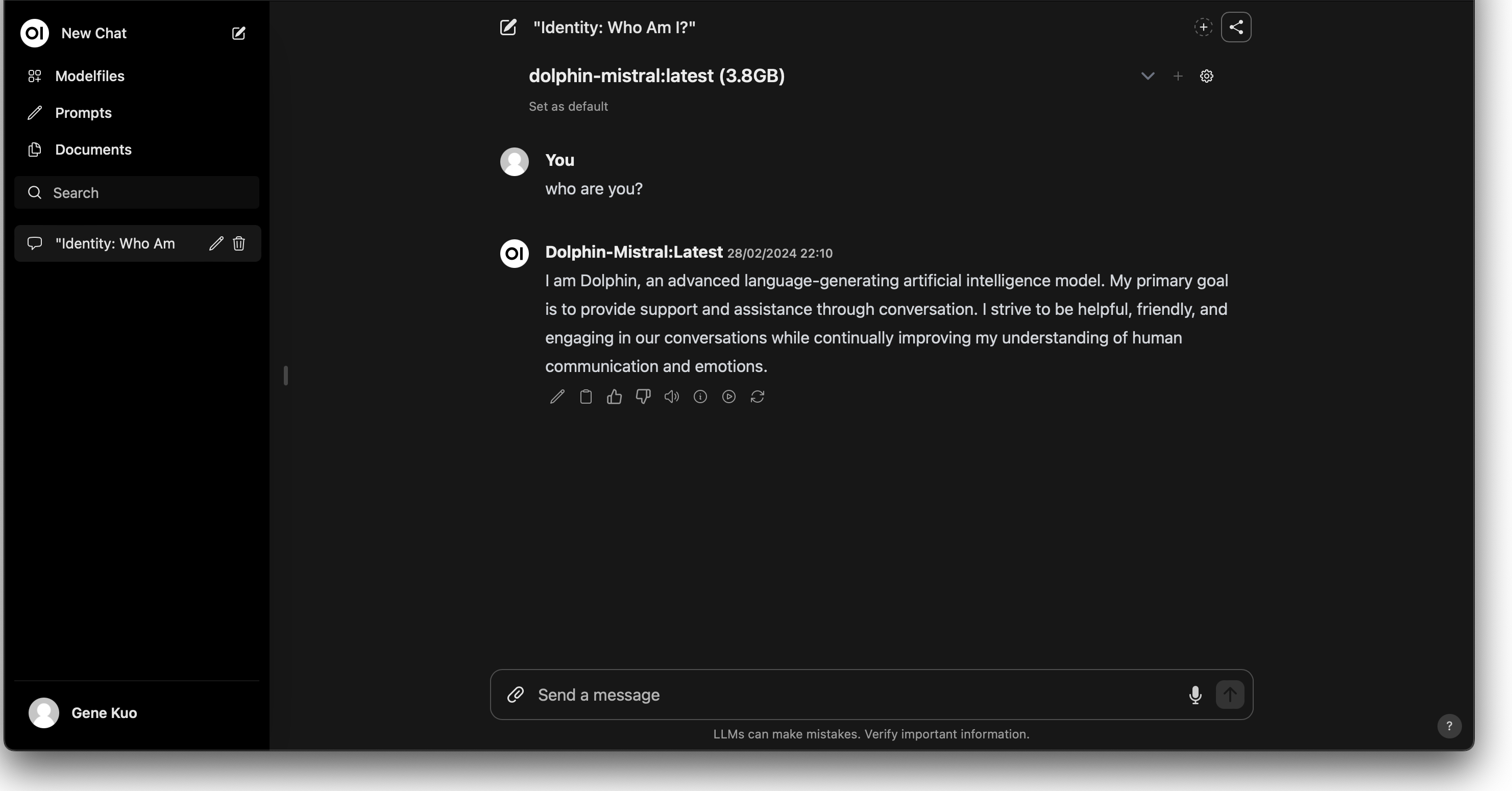
Conclusion
By following these steps, we have successfully enabled Nvidia GPU support in a Kubernetes environment and established a fully functional LLM chatbot site. This process deepens our understanding of Kubernetes and Nvidia GPU deployment while providing a practical reference for building high-performance computing applications and interactive AI services.

