Contents
Introduction
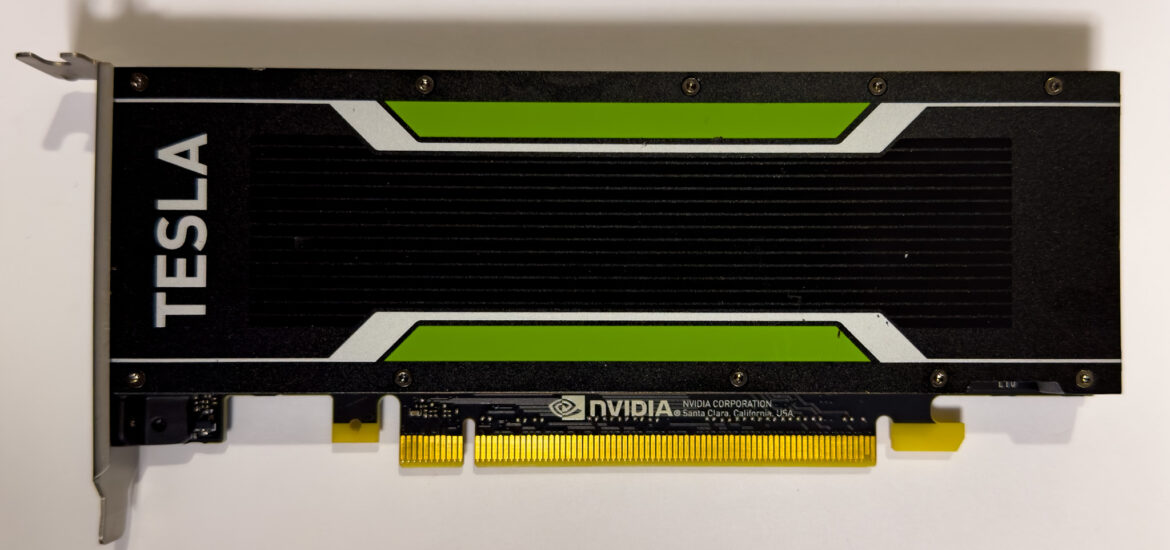
A few weeks ago, I came across some very cheap Nvidia Tesla P4 cards on a second-hand platform in China. Since the Tesla P4 is a low-profile, single-slot graphics card that doesn't require external power, it's perfect for use in 1U servers. So, I bought a few to test out vGPU. This article will introduce how to use Nvidia's vGPU feature on Proxmox VE.
vGPU 技術
I've been interested in vGPU technology for a while, especially AMD's MxGPU technology, which is claimed to be open-source and usable as long as the hardware supports it. However, after getting an AMD Instinct MI25, I discovered that the open-source drivers only support the ancient S7150. Even the closed-source drivers aren't available for download; they are only accessible to major cloud providers like Microsoft Azure and Alibaba Cloud. After trying various patches, the kernel driver still wouldn't work properly, so I ended up putting that card in storage.
Nvidia's proprietary GRID technology is not open-source, but you can download the drivers just by registering an account. I think this is much better handled compared to AMD.
As for how they work, AMD's MxGPU uses SR-IOV, while Nvidia GRID on this Tesla P4 uses mdev for vGPU passthrough.
Now, let's get to the main topic: how to use Nvidia vGPU on Proxmox VE.
前置設定
First, let's add the Proxmox VE community repository and remove the enterprise repository.
echo "deb http://download.proxmox.com/debian/pve bullseye pve-no-subscription" >> /etc/apt/sources.list
rm /etc/apt/sources.list.d/pve-enterprise.list
Update and upgrade
apt update
apt dist-upgrade
Install some required software packages
apt install -y git build-essential dkms pve-headers mdevctlInstall and Configure vgpu_unlock
vgpu_unlock This is an open-source tool on GitHub that allows you to use Nvidia vGPU technology—originally only available on Tesla and certain Quadro cards—on GeForce and other Quadro cards.
The Tesla P4 works without needing vgpu_unlock, but the tool provides features to override original mdev settings, which is quite useful for a graphics card with only 7680MB of memory.
First, clone the required GitHub repository.
git clone https://gitlab.com/polloloco/vgpu-proxmox.git
cd /opt
git clone https://github.com/mbilker/vgpu_unlock-rs.git
Install the Rust compiler
curl https://sh.rustup.rs -sSf | sh -s -- -yAdd Rust binaries to the PATH
source $HOME/.cargo/envCompilation
cd vgpu_unlock-rs/
cargo build --release
Create the necessary configuration files so that the Nvidia vGPU service reads the vgpu_unlock library upon startup.
mkdir /etc/vgpu_unlock
touch /etc/vgpu_unlock/profile_override.toml
mkdir /etc/systemd/system/{nvidia-vgpud.service.d,nvidia-vgpu-mgr.service.d}
echo -e "[Service]\nEnvironment=LD_PRELOAD=/opt/vgpu_unlock-rs/target/release/libvgpu_unlock_rs.so" > /etc/systemd/system/nvidia-vgpud.service.d/vgpu_unlock.conf
echo -e "[Service]\nEnvironment=LD_PRELOAD=/opt/vgpu_unlock-rs/target/release/libvgpu_unlock_rs.so" > /etc/systemd/system/nvidia-vgpu-mgr.service.d/vgpu_unlock.conf
If you are using a graphics card that natively supports vGPU, such as the Tesla series, disable the unlock feature to avoid unnecessary complexity.
echo "unlock = false" > /etc/vgpu_unlock/config.tomlLoad Required Kernel Modules and Blacklist Unnecessary Ones
vGPU operation requires vfio, vfio_iommu_type1, vfio_pci 跟 vfio_virqfd these kernel modules.
echo -e "vfio\nvfio_iommu_type1\nvfio_pci\nvfio_virqfd" >> /etc/modulesThen, blacklist the open-source Nvidia drivers.
echo "blacklist nouveau" >> /etc/modprobe.d/blacklist.confRestart
rebootNvidia Driver
At the time of writing (December 2022), the latest GRID driver is version 15.0, paired with vGPU driver 525.60.12. You can find it atCheck the latest version here. Newer versions may require additional patches to function.
Obtain Drivers
Nvidia GRID drivers are not available for public download, but you can NVIDIA Licensing Portal register and download a trial version.
注意在註冊得時候如果使用免費的 email 提供商的 email 會需要透過人工認證才能註冊成功,請使用自己 domain 的 email。
Once the download is complete, extract the files and upload them to the server.
scp NVIDIA-Linux-x86_64-525.60.12-vgpu-kvm.run root@pve:/root/GPUs with vGPU Support
If your graphics card natively supports vGPU, simply install the driver directly; no patching is required.
chmod +x NVIDIA-Linux-x86_64-525.60.12-vgpu-kvm.run
./NVIDIA-Linux-x86_64-525.60.12-vgpu-kvm.run --dkms
Reboot after installation
rebootGPUs without vGPU Support
When using graphics cards that do not support vGPU, such as the GeForce series, the drivers must be patched.
chmod +x NVIDIA-Linux-x86_64-525.60.12-vgpu-kvm.run
./NVIDIA-Linux-x86_64-525.60.12-vgpu-kvm.run --apply-patch ~/vgpu-proxmox/525.60.12.patch
The following message should be output:
Self-extractible archive "NVIDIA-Linux-x86_64-525.60.12-vgpu-kvm-custom.run" successfully created.Next, install the driver.
./NVIDIA-Linux-x86_64-525.60.12-vgpu-kvm.run --dkmsReboot after installation
rebootFinal Check
After installation and rebooting, enter this command:
nvidia-smiYou should see an output similar to this:
Fri Dec  9 22:57:28 2022
+-----------------------------------------------------------------------------+
| NVIDIA-SMI 525.60.12    Driver Version: 525.60.12    CUDA Version: N/A      |
|-------------------------------+----------------------+----------------------+
| GPU  Name        Persistence-M| Bus-Id        Disp.A | Volatile Uncorr. ECC |
| Fan  Temp  Perf  Pwr:Usage/Cap|         Memory-Usage | GPU-Util  Compute M. |
|                               |                      |               MIG M. |
|===============================+======================+======================|
|   0  Tesla P4            On   | 00000000:86:00.0 Off |                    0 |
| N/A   36C    P8    10W /  75W |     27MiB /  7680MiB |      0%      Default |
|                               |                      |                  N/A |
+-------------------------------+----------------------+----------------------+

+-----------------------------------------------------------------------------+
| Processes:                                                                  |
|  GPU   GI   CI        PID   Type   Process name                  GPU Memory |
|        ID   ID                                                   Usage      |
|=============================================================================|
|  No running processes found                                                 |
+-----------------------------------------------------------------------------+
Then, verify that the vGPU mdev exists.
mdevctl typesThe output will look like this:
  nvidia-69
    Available instances: 2
    Device API: vfio-pci
    Name: GRID P4-4A
    Description: num_heads=1, frl_config=60, framebuffer=4096M, max_resolution=1280x1024, max_instance=2
  nvidia-70
    Available instances: 1
    Device API: vfio-pci
    Name: GRID P4-8A
    Description: num_heads=1, frl_config=60, framebuffer=8192M, max_resolution=1280x1024, max_instance=1
  nvidia-71
    Available instances: 8
    Device API: vfio-pci
    Name: GRID P4-1B
    Description: num_heads=4, frl_config=45, framebuffer=1024M, max_resolution=5120x2880, max_instance=8
You can also use nvidia-smi Check
nvidia-smi vgpuFri Dec 9 22:58:03 2022
+-----------------------------------------------------------------------------+
| NVIDIA-SMI 525.60.12 Driver Version: 525.60.12 |
|---------------------------------+------------------------------+------------+
| GPU Name | Bus-Id | GPU-Util |
| vGPU ID Name | VM ID VM Name | vGPU-Util |
|=================================+==============================+============|
| 0 Tesla P4 | 00000000:86:00.0 | 0% |
+---------------------------------+------------------------------+------------+vGPU Overrides
Earlier, we created /etc/vgpu_unlock/profile_override.toml this file, which is used for vGPU override. Since the Tesla P4 has only 7680MiB of memory, we can only create one vGPU with the default 4GB mdev setting. Thus, we can use vGPU override to change the mdev's VRAM value.
Here is an example:
[profile.nvidia-259]
num_displays = 1          # Max number of virtual displays. Usually 1 if you want a simple remote gaming VM
display_width = 1920      # Maximum display width in the VM
display_height = 1080     # Maximum display height in the VM
max_pixels = 2073600      # This is the product of display_width and display_height so 1920 * 1080 = 2073600
cuda_enabled = 1          # Enables CUDA support. Either 1 or 0 for enabled/disabled
frl_enabled = 1           # This controls the frame rate limiter, if you enable it your fps in the VM get locked to 60fps. Either 1 or 0 for enabled/disabled
framebuffer = 0x76000000  # VRAM size for the VM. In this case its 2GB
                          # Other options:
                          # 1GB: 0x3B000000
                          # 2GB: 0x76000000
                          # 3GB: 0xB1000000
                          # 4GB: 0xEC000000
                          # 8GB: 0x1D8000000
                          # 16GB: 0x3B0000000
                          # These numbers may not be accurate for you, but you can always calculate the right number like this:
                          # The amount of VRAM in your VM = `framebuffer` + `framebuffer_reservation`
[mdev.00000000-0000-0000-0000-000000000100]
frl_enabled = 0
# You can override all the options from above here too. If you want to add more overrides for a new VM, just copy this block and change the UUID
[profile.nvidia-259] This will override all VMs using nvidia-259 this mdev, whereas [mdev.00000000-0000-0000-0000-000000000100] Only applies to 00000000-0000-0000-0000-000000000100 VMs with a UUID.
Enable vGPU for Proxmox VMs
To enable vGPU for a Proxmox VM, you only need to do one thing on the command line: assign a UUID to the VM.
vim /etc/pve/qemu-server/<VM-ID>.confAppend a random UUID at the end, or use the VM ID.
args: -uuid 00000000-0000-0000-0000-00000000XXXX如 VM ID 1000 我們就可以用
args: -uuid 00000000-0000-0000-0000-000000001000接下來我們可以在 Proxmox VE UI 中操作,選擇你的 VM,進入 Hardware,加入 PCI device,選擇你要使用的 GPU。這個 GPU 在 Mediated Devices 這行應該是顯示 Yes。選擇後你應該還可以選擇 MDev Type,從中挑選你要使用的 mdev 。
接下來開機並且安裝 driver,安裝完成後可以將內建的 Display 設成 none (none),接下來所有視訊輸出都會透過 vGPU 進行運算。注意更改後內建的 Proxmox console 將會無法使用,請確認你有可以遠端連線至 VM 的方法在進行更改。
Reference
https://gitlab.com/polloloco/vgpu-proxmox#adding-a-vgpu-to-a-proxmox-vm

