隨著人工智慧技術的快速發展,越來越多的企業和開發者希望在自己的系統中整合語言模型聊天機器人(LLM Chatbot)。本文旨在引導讀者如何在 Kubernetes 環境中使用 Nvidia GPU,來部署一個高效能的 LLM Chatbot,從安裝必要的驅動和工具到具體的部署步驟,逐一介紹。
Table of Contents
環境
我們將以以下的虛擬機(VM)配置為基礎來進行部署:
- CPU: AMD Epyc 7413 16核心
- RAM: 16GB
- GPU: Tesla P4 8GB
- OS: Ubuntu 22.04
- Kubernetes CRI: containerd
在 Kubernetes 提供 Nvidia GPU
安裝 Nvidia 驅動程式
在 Ubuntu 系統中,您可以透過 apt 套件管理器來安裝 Nvidia 的專有的驅動程式。首先,使用以下指令來搜尋可用的 Nvidia 驅動版本:
apt search nvidia-driver本教學將以 Nvidia 驅動 525 版本為例進行安裝:
sudo apt install nvidia-driver-525-server安裝完成後,您可以透過以下指令確認驅動已成功安裝:
sudo dkms status

lsmod | grep nvidia
安裝成功的輸出將為:
nvidia-srv/525.147.05, 5.15.0-97-generic, x86_64: installed

nvidia_uvm           1363968  2
nvidia_drm             69632  0
nvidia_modeset       1241088  1 nvidia_drm
nvidia              56365056  218 nvidia_uvm,nvidia_modeset
安裝 Nvidia Container Toolkit
Nvidia Container Toolkit 允許容器直接存取 GPU。安裝此 toolkit 可透過以下指令完成:
curl -fsSL https://nvidia.github.io/libnvidia-container/gpgkey | sudo gpg --dearmor -o /usr/share/keyrings/nvidia-container-toolkit-keyring.gpg \
  && curl -s -L https://nvidia.github.io/libnvidia-container/stable/deb/nvidia-container-toolkit.list | \
    sed 's#deb https://#deb [signed-by=/usr/share/keyrings/nvidia-container-toolkit-keyring.gpg] https://#g' | \
    sudo tee /etc/apt/sources.list.d/nvidia-container-toolkit.list

sudo apt update
sudo apt install -y nvidia-container-toolkit
安裝後,配置 containerd 以使用 Nvidia container runtime:
sudo nvidia-ctk runtime configure --runtime=containerd此操作將更改 /etc/containerd/config.toml 配置檔如下,以支援 Nvidia GPU:
version = 2

[plugins]

  [plugins."io.containerd.grpc.v1.cri"]

    [plugins."io.containerd.grpc.v1.cri".containerd]

      [plugins."io.containerd.grpc.v1.cri".containerd.runtimes]

        [plugins."io.containerd.grpc.v1.cri".containerd.runtimes.nvidia]
          privileged_without_host_devices = false
          runtime_engine = ""
          runtime_root = ""
          runtime_type = "io.containerd.runc.v2"

          [plugins."io.containerd.grpc.v1.cri".containerd.runtimes.nvidia.options]
            BinaryName = "/usr/bin/nvidia-container-runtime"
安裝 Nvidia Device Plugin
使用 Helm 安裝 Nvidia device plugin 以便 Kubernetes 能識別並分配 GPU 資源:
helm repo add nvdp https://nvidia.github.io/k8s-device-plugin
helm repo update
helm upgrade -i nvdp nvdp/nvidia-device-plugin \
  --namespace nvidia-device-plugin \
  --create-namespace \
  --version 0.14.4
詳細設定的 values 檔可以在這裡獲取,透過設定適當的 nodeSelector,可以確保 Nvidia device plugin 僅在裝有 GPU 的節點上安裝。
在 Pod 中使用 Nvidia GPU
要讓 Pod 使用 Nvidia GPU,您需在 Kubernetes 的 yaml 檔案中增加以下設定:
spec:
  containers:
      resources:
        limits:
          nvidia.com/gpu: 1
部署 LLM Chatbot
採用 ollama 和 open-webui 作為 LLM Chatbot 的部署方案,這些工具已經提供了適用於 Kubernetes 的 yaml 檔案和 Helm Chart,以簡化部署過程。
以下是利用 Kustomize 進行部署的步驟:
git clone https://github.com/open-webui/open-webui.git
cd open-webui
kubectl apply -k kubernetes/manifest
完成後,您將能在 open-webui 命名空間下看到兩個運行中的 pod。您可以透過 Ingress 或 NodePort 來連接到 Web UI,預設的連接端口為 8080。
kubectl get pods -n open-webui
NAME                                   READY   STATUS    RESTARTS   AGE
ollama-0                               1/1     Running   0          3d3h
open-webui-deployment-9d6ff55b-9fq7r   1/1     Running   0          4d19h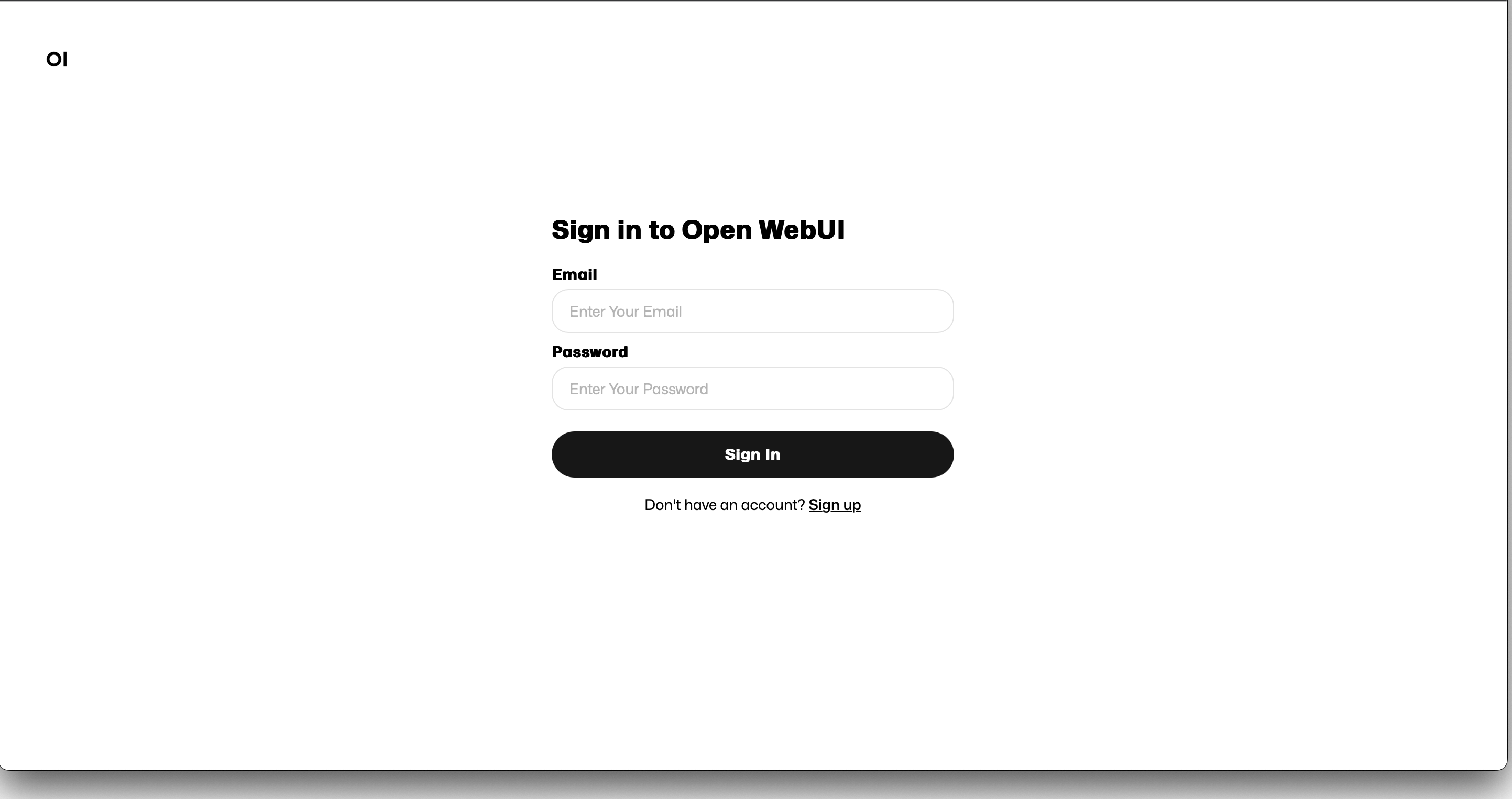
預設將會開啟新用戶註冊,註冊後可以利用填寫的帳號密碼登入,將會看到非常類似 ChatGPT 的介面:
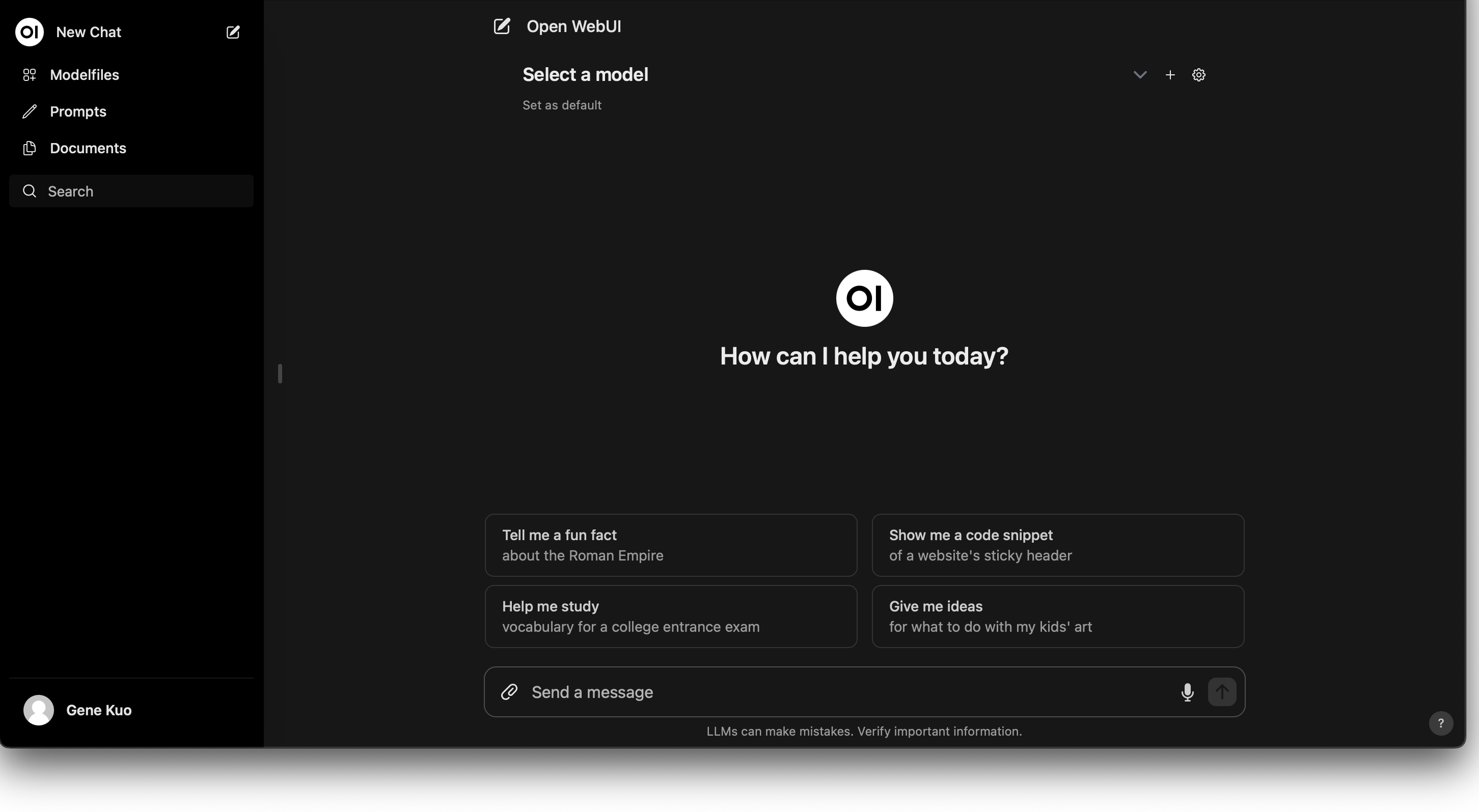
可以在設定中下載 ollama 上的 LLM model:
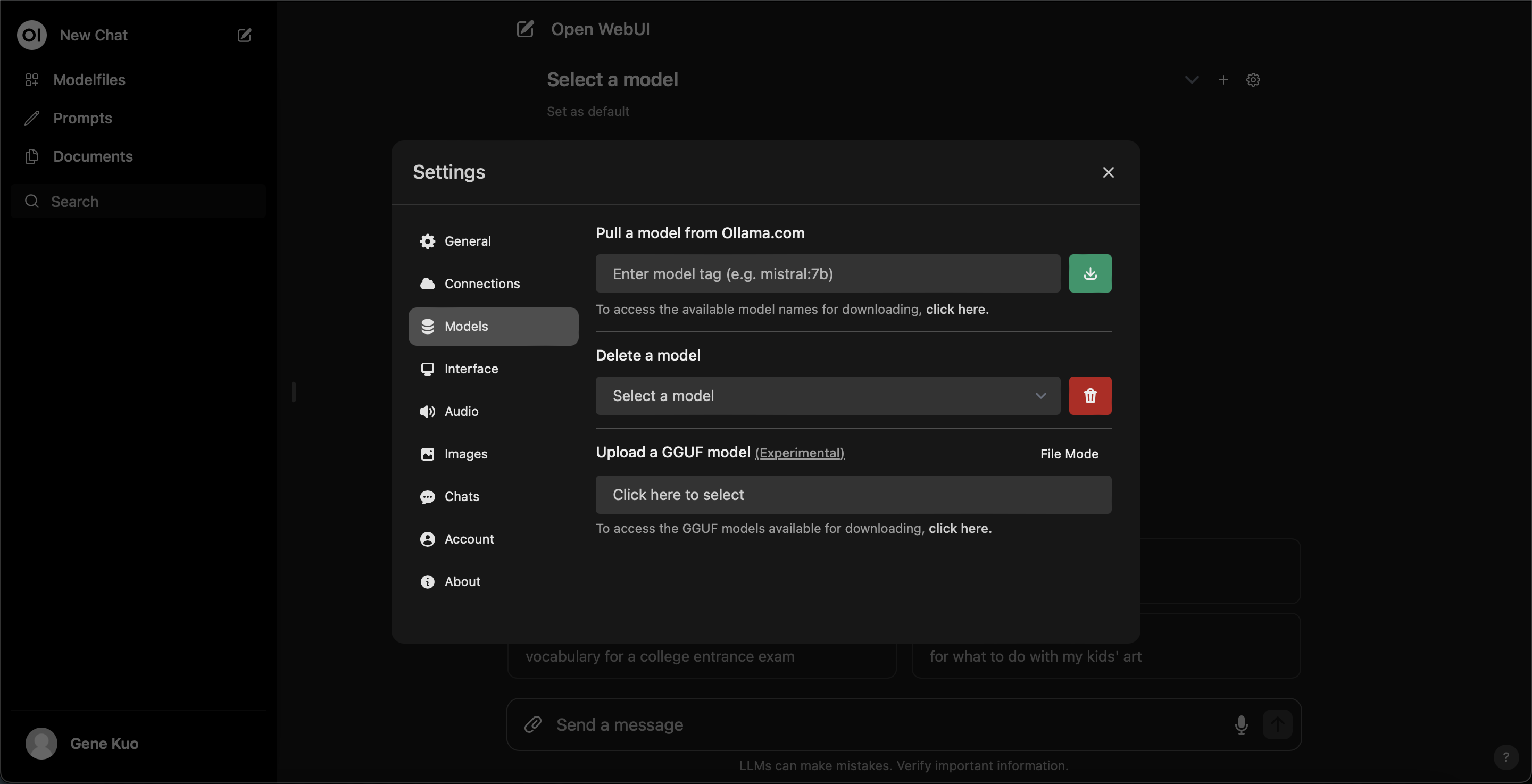
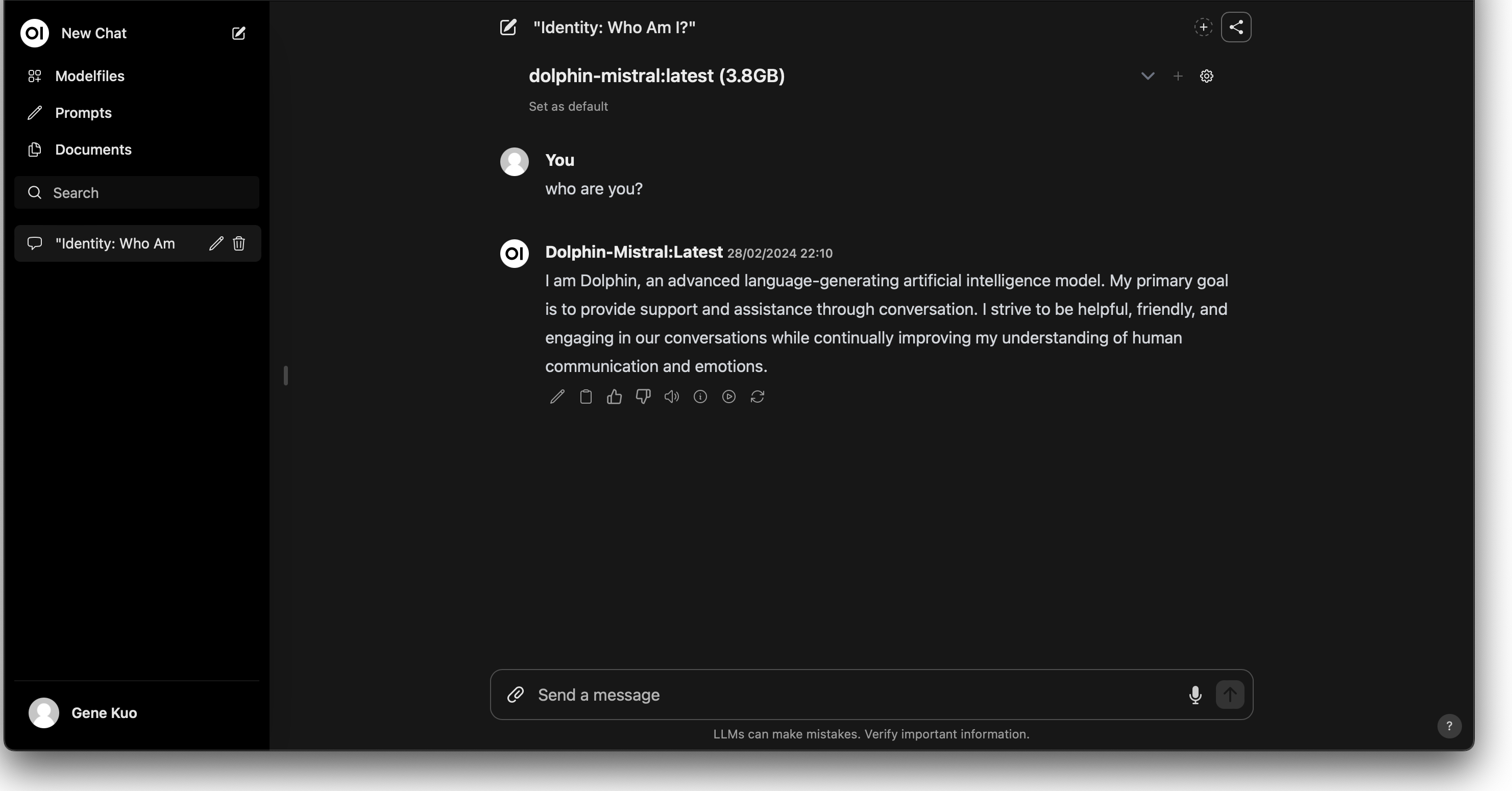
下載後選擇想要使用的的 model 就可以開始跟 Chatbot 對話了:
總結
透過上述步驟,我們不僅在 Kubernetes 環境中成功部署了 Nvidia GPU 的支援,還建立了一個功能齊全的 LLM Chatbot 網站。這不僅加深了我們對於 Kubernetes 及 Nvidia GPU 部署的理解,也為構建高效能計算應用和互動式 AI 服務提供了實用的參考。
